
Using Graphics
Last updated on 2026-07-27 | Edit this page
Overview
Questions
- How do I include images in a LaTeX document?
Objectives
- Demonstrate how to include images in a LaTeX document.
- Show how to position images manually / automatically in a LaTeX document.
The Graphicx Package
In order to use graphics in our document, we’ll need to use the
graphicx package, which adds the
\includegraphics command to LaTeX. We’ll add this to the
preamble of our document:
We can now include several types of images in our document, including:
- JPEG
- PNG
- SVG
- EPS
Although LaTeX can handle several commonly used image formats, there
are a few which are currently incompatible with LaTeX. For example, the
webp and tiff formats. If you have an image in
one of these formats, you will need to convert it to a compatible format
before including it in your document.
For the purposes of this lesson, we’ll use the following image:

Download this image to your computer either be right-clicking on the image and selecting “Save Image As…” or by clicking on the image and saving it from the browser.
You can use any image you like for this lesson. Just make sure to
replace my-awesome-image.png with the name of your image in
the following examples.
Place the image in the same directory as your LaTeX document so that LaTeX can find it when we compile the document.
There is a command called \graphicspath that allows you
to specify a directory where LaTeX should look for images. This can be
useful if you have a dedicated folder for your images. For example, if
you have a folder called images in the same directory as
your LaTeX document, you can add the following line to your
preamble:
This tells LaTeX to look for images in the images folder
when you use the \includegraphics command.
Including an Image in a LaTeX Document
Now that we have our image, we can include it in our document using
the \includegraphics command:
LATEX
\section{Graphics}

We can include \kw{images} in our document using the \cmd{graphicx} package, which lets us use the
\cmd{includegraphics} command.

\includegraphics{my-awesome-image}
Your document should now look like this:
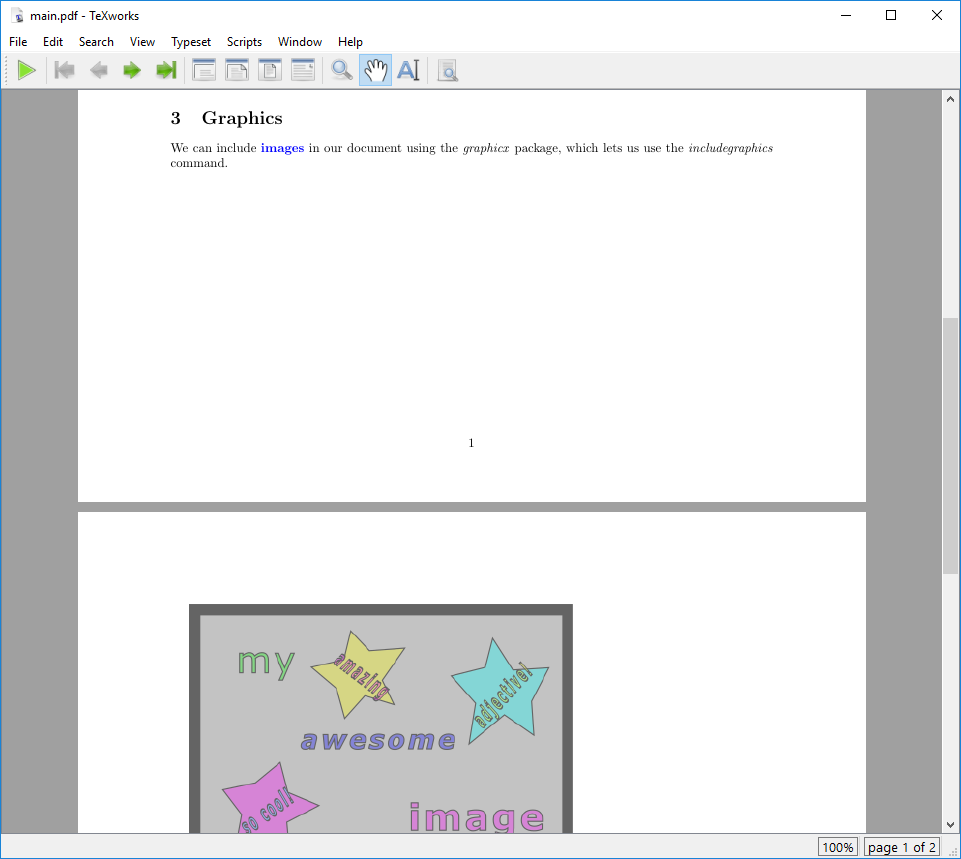
If you just want to see how an image might look in your document
without having to find one, you can use the filepath
example-image in the \includegraphics command.
This will display a placeholder image in your document that you can
replace later.
Adjusting the appearance of the image
But wait! The image is too big, and it doesn’t fit on the page, so LaTeX has moved it to the next page. Since the image is a little too large to fit on the same page as the text, LaTeX has moved it automatically to the next page. Let’s address that by making the image smaller.
We can adjust the appearance of the image by passing options to the
\includegraphics command, just like we did earlier with the
geometry package. For example, we can specify the height of
the image:
LATEX
\subsection{Small Image}

We can pass parameters to the \cmd{includegraphics} command to adjust the appearance of the image.

\includegraphics[height=2cm]{my-awesome-image}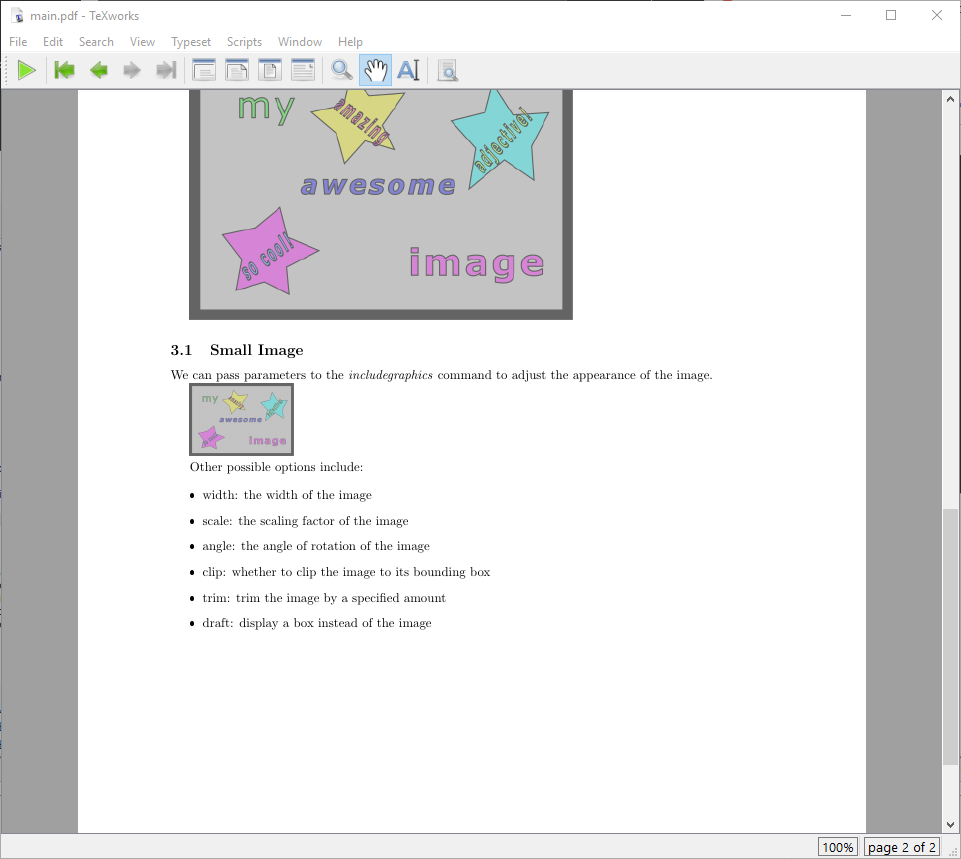
Some other possible options from the graphicx package
include:
-
width: the width of the image -
scale: the scaling factor of the image -
angle: the angle of rotation of the image -
clip: whether to clip the image to its bounding box -
trim: trim the image by a specified amount -
draft: display a box instead of the image
The \linewidth command can be used to specify the width
of the image relative to the width of the text. For example,
width=0.5\linewidth would make the image half the width of
the text, rather than having to specify exact values.
This is particuarly useful in multi-column layouts, where the width of the text may vary depending on the number of columns.
Overfull Boxes
Now that we have included an image in our document, we have another kind of error we might encounter - “overfull boxes”. This happens when the content of a box (like an image or a paragraph of text) is too large to fit within the specified dimensions of the box, and it overflows into the margins.
The following code generates this warning message:
LATEX
\documentclass{article}

\usepackage{graphicx}
\begin{document}

\section{Adding a rotated image}

We can rotate an image by setting the "angle" parameter:

\includegraphics[scale=2, angle=45]{my-awesome-image.png}
\end{document}
The document compiles successfully, but there was some text that briefly appeared in the console output. Let’s look at the .log file to see what it says:
Overfull \hbox (390.7431pt too wide) in paragraph at lines 10--11
[][]
 []


[1

{c:/texlive/2025/texmf-var/fonts/map/pdftex/updmap/pdftex.map}]
Overfull \vbox (170.7431pt too high) has occurred while \output is active []


[2 <./example-image.png>] (./main.aux)
This means that the text or image is too wide or too tall for the page, and it is overflowing into the margins. To fix this, we can adjust the size of the image or the layout of the page to ensure that everything fits within the specified dimensions.
Note that there may be times when we actually want the image to overflow into the margins, for example if we want to include an image that extends to the edges of the page. In this case, we can ignore the warning message and proceed with our document - this warning will not prevent our document from compiling successfully.
Positioning the image
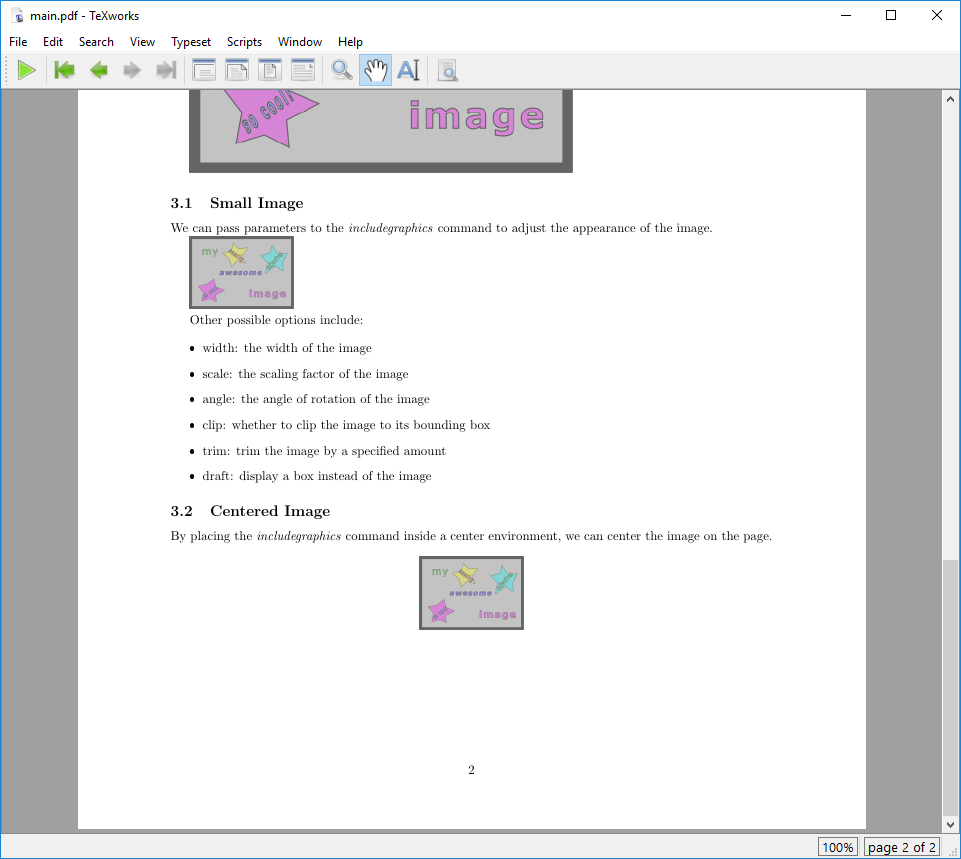
We can place the image inside of an environment to help position it
in the document. Let’s try placing the \includegraphics
command inside of a \begin{center} and
\end{center} environment:
LATEX
\subsection{Centered Image}

By placing the \cmd{includegraphics} command inside a center environment, we can center the
image on the page.

\begin{center}
  \includegraphics[height=2cm]{my-awesome-image}
\end{center}
You should see that the image is now centered on the page:
“Floating” Images
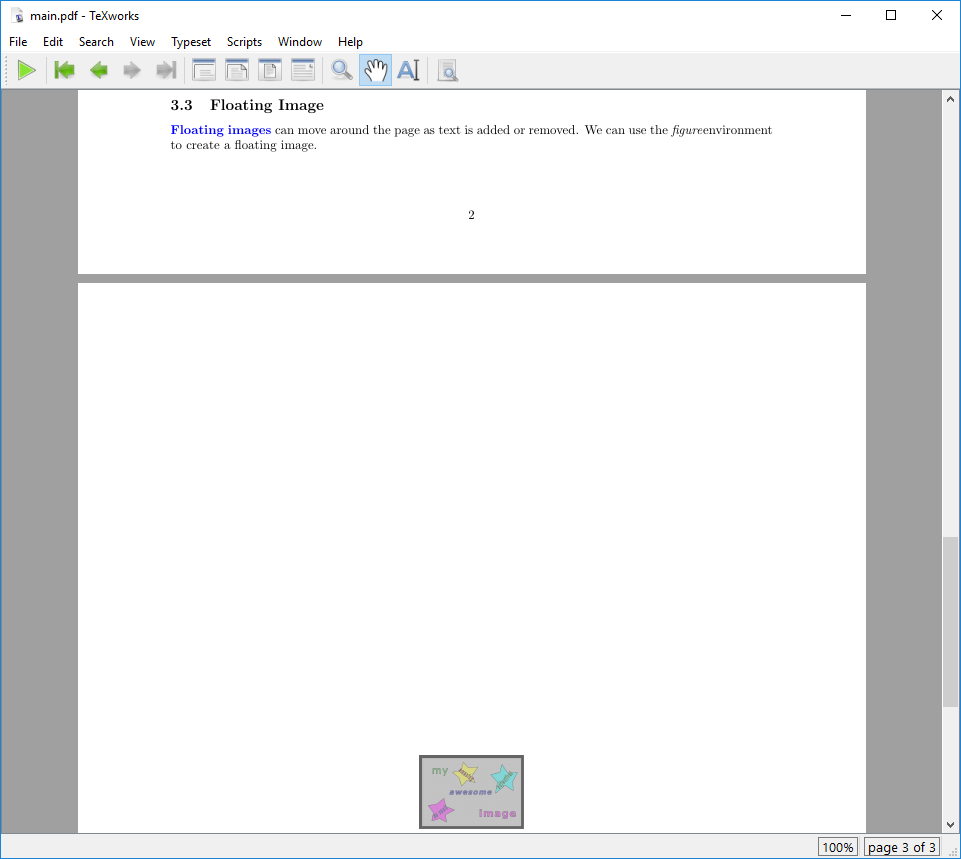
It’s often the case that images need to “float” around the document as new text is added or removed. this is called a “floating” image. Images are normally included as floats so that we don’t end up with large gaps in the document.
To make an image float, we can use the figure
environment:
LATEX
\subsection{Floating Image}

\kw{Floating images} can move around the page as text is added or removed. We can use the
\cmd{figure}environment to create a floating image.

\begin{figure}
  \centering
  \includegraphics[height=2cm]{my-awesome-image}
\end{figure}
When we render the document, we can see that, even though we placed the image at the end of the document, it appears at the top of the page:
You might have noticed that instead of using the
\begin{center} and \end{center} environment,
we used the \centering command inside of the
figure environment. This is because the figure
environment is a floating environment, and the \centering
command is the recommended way to center content inside of a floating
environment.
Controlling the Position of a Floating Image
We can pass parameters to the figure environment to
control the position of the floating image:
-
h: Place the float “here” (where it appears in the code) -
t: Place the float at the “top” of the page -
b: Place the float at the “bottom” of the page -
p: Place the float on a “page” by itself
It is also possible to combine these options. For example, to place
the float here if possible, but otherwise at the top of the page, we can
use the ht option. Let’s update our figure
environment to use the ht option:
LATEX
\begin{figure}[ht]
  \centering
  \includegraphics[height=2cm]{my-awesome-image}
\end{figure}

Control the position of a floating image by passing parameters to the \cmd{figure} environment:

\begin{itemize}
  \item h: "here"
  \item t: "top"
  \item b: "bottom"
  \item p: "page"
\end{itemize}You can use the package wrapfig together with
graphicx in your preamble. This makes the
wrapfigure environment available and we can place an
\includegraphics command inside it to create a figure
around which text will be wrapped. Here is how we can specify a
wrapfigure environment:
We will describe the wrapfigure environment in more
detail in one of the challenges below.
Adding a Caption
We can add a caption to our image by using the \caption
command inside of the figure environment:
LATEX
\subsection{Caption}

We can add a \kw{caption} to our floating image by using the \cmd{caption} command inside of the
\cmd{figure} environment.

\begin{figure}
  \centering
  \includegraphics[height=2cm]{my-awesome-image}
  \caption{This is a caption for our image.}
\end{figure}
When we render the document, we can see that the caption appears below the image:
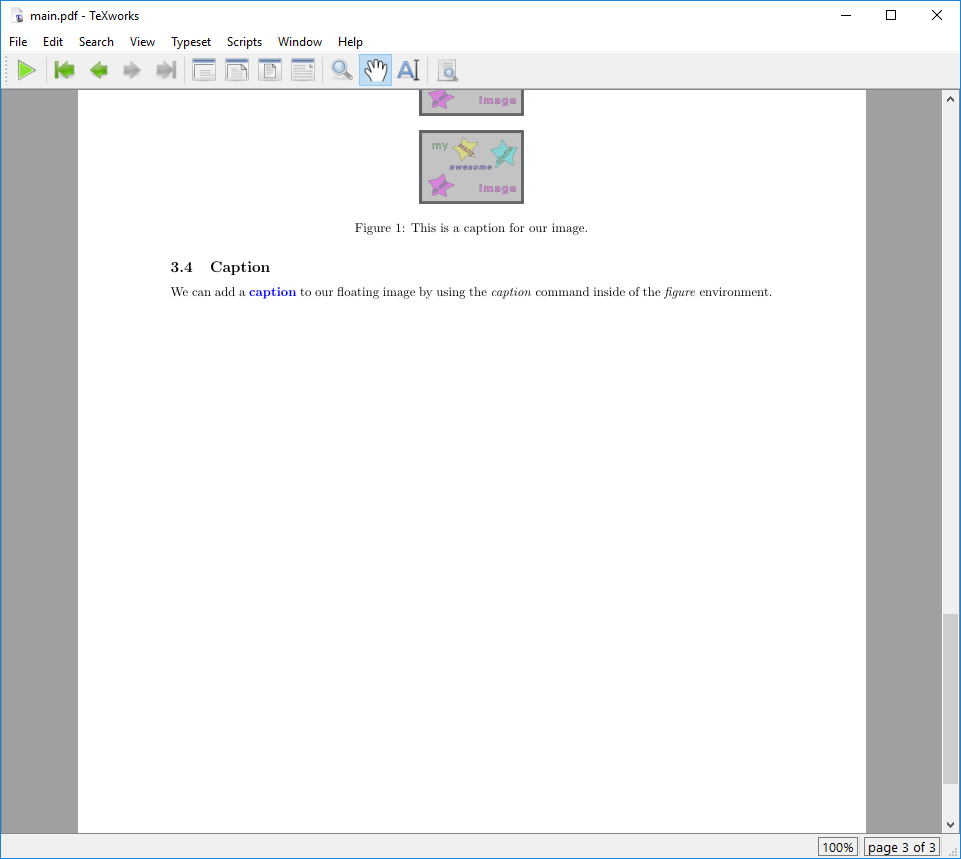
Note that the caption is automatically numbered “Figure 1”. Very handy! We’ll see how we can automatically reference figures and tables in a later episode.
Another package that we can use to work with images in LaTeX is the
hvfloat package. This package is an alterantive way of
controlling the position of floating elements in LaTeX, like images and
tables. It provides a more flexible way of positioning floats allowing
us to, for example, place a float at the bottom of the page, even if
there is not enough space for it to fit.
There’s a command called \listoffigures that will
generate a list of all of the figures in your document. This will only
list the figures that have a caption, so make sure to add a caption to
any figure you want to be included in the list.
Challenges
Challenge 1: Can you do it?
Consider again our running example of
my-awesome-image.PNG. Try the following:
- Include this image into your LaTeX document by using the
figureenvironment. - Make sure that your image is centered and rotate the image by 45 degree.
- Add the following caption to your image: “This caption has a bold word included.”
What would your final LaTeX look like?
We use the \centering command in the figure
environment and specify angle=45 to rotate the image. Below
the graphics, but still within the figure
environment, we use the \caption command to add a
caption to our image.
Challenge 2: What is wrong here?
Have a look at the following LaTeX code:
LATEX
\documentclass{article}

\begin{document}

\centering
\begin{figure}
  \includegraphics[height=3cm, draft]{my-awesome-image}
  \caption{This caption has a \textbf{bold} word included.}
\end{figure}

\end{document}
Can you spot all the errors in this LaTeX code? Change the code such that the image is displayed with a height of 3cm, width of 4cm and centered.
- the command
\usepackage{graphicx}is missing in the preamble. - the
\centeringcommand has to be placed into thefigureenvironment. - the
draftargument has to be removed from the\includegraphicscommand andwidth=4cmadded.
The corrected LaTeX code looks like this:
Challenge 3: Making a command for images
In the previous section, we created a command to highlight keywords
in our document. Let’s create a new command to make it easier to include
images in our document. We’ll create a command called
\centeredimage that takes two arguments: the image filename
and the caption. The resulting image should be centered on the page and
have a caption below it. Use the example-image.png from earlier in this
episode.
Your file should look like this:
LATEX
\documentclass{article}
\usepackage{graphicx}

% Define our new command
%%% YOUR COMMAND HERE %%%

\begin{document}

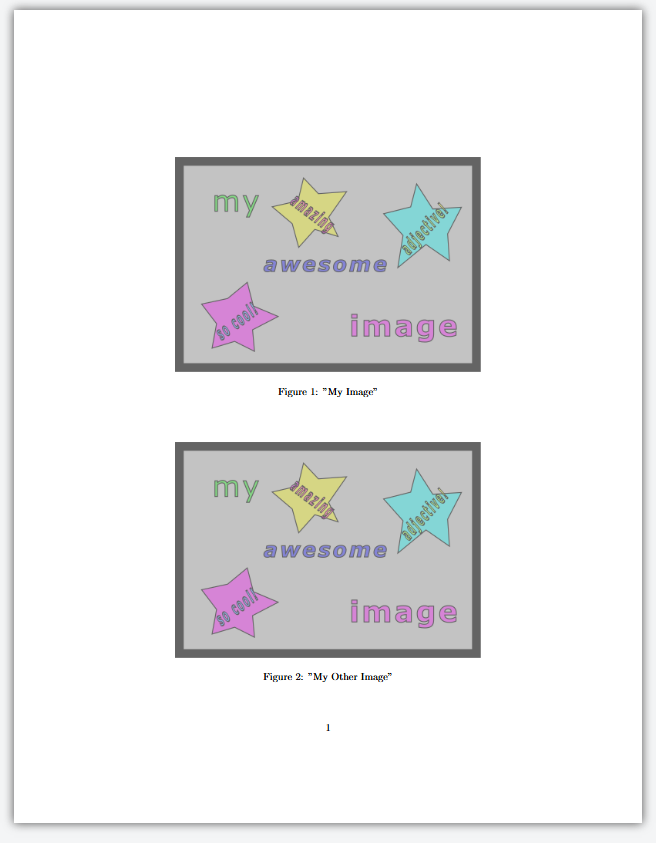
\centeredimage{example-image.png}{"My Image"}
\centeredimage{example-image.png}{"My Other Image"}

\end{document}
And your output should look like this.
Reminder: The syntax for creating a new command is:
LATEX
\documentclass{article}
\usepackage{graphicx}

% Define our new command
\newcommand{\centeredimage}[2]{
  \begin{figure}
    \centering
    \includegraphics{#1}
    \caption{#2}
  \end{figure}
}

\begin{document}

\centeredimage{my-awesome-image}{"My Image"}
\centeredimage{my-awesome-image}{"My Other Image"}

\end{document}
Challenge 4: The wrapfig
package.
Have a look at the following LaTeX code that uses the
wrapfigure environment. Can you already guess how the
images will be displayed in your document?
LATEX
\documentclass{article}

\usepackage{wrapfig}
\usepackage{graphicx}

\begin{document}

\begin{wrapfigure}{r}{0.1\textwidth}
    \centering
    \includegraphics[width=0.1\textwidth, height=0.1\textwidth]{my-awesome-image}
\end{wrapfigure}

The package wrapfigure lets you position images around your text.
That comes in handy if you want to integrate images seamlessly into your written sentences.
Therefore, I add a few more sentences here to showcase this integration to you.

\begin{wrapfigure}{l}{0.1\textwidth}
    \centering
    \includegraphics[width=0.1\textwidth, height=0.1\textwidth]{example-image.PNG}
\end{wrapfigure}

Be careful, you need both packages, wrapfig and graphicx, in your preamble to display your images
and wrap them accordingly. There are several ways to display images, depending on the arguments you
specify. For instance, you can scale the image width according to the width of the text.

\end{document}The first image will be placed at the right of the following
paragraph of text as {r} is specified as an argument within
the first wrapfigure environment. The second image will be
placed at the left of its following paragraph of text as
{l} is specified as an argument within the second
wrapfigure environment. Moreover, both images are scaled by
being 0.1 of the width of the text in your document.
- The
graphicxpackage allows us to include images in our LaTeX document. - We can adjust the appearance of images using options in the
\includegraphicscommand. - We can position images manually or automatically using environments
like
centerandfigure. - Floating images can move around the page as text is added or removed.
- We can control the position of floating images using parameters in
the
figureenvironment. - We can add captions to floating images using the
\captioncommand.
After this episode, here is what our LaTeX document looks like.